![amperecloud_logo_bgwhite-1.png]](https://knowledge.ampere.cloud/hs-fs/hubfs/amperecloud_logo_bgwhite-1.png?height=40&name=amperecloud_logo_bgwhite-1.png)
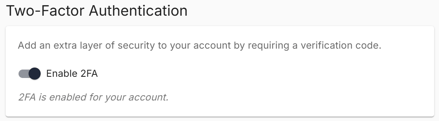
Users can enable two-factor authentication (2FA) by toggling the option on their Profile page . After activation, they will be required to log out and, upon their next login, set up 2FA using an authentication app. After the grace period ends on February 6th, this option will be removed and 2FA will be enforced for all users.
Content
Setting Up 2FA
During initial login, Platform guides you through a one-time setup:
-
Install an authenticator app on your device.
-
Scan the QR code shown on screen.
-
Enter the first generated PIN code to confirm pairings.
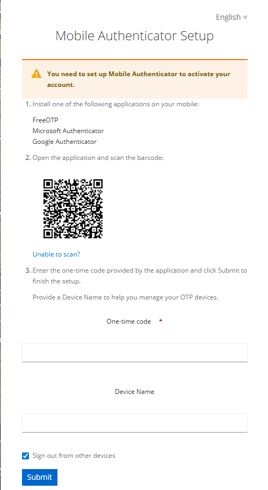
Once completed, your device generates continuously rotating authentication codes for login.
Authenticator Apps (TOTP)
Ampere Cloud uses the TOTP authentication standard. The following apps are known to work well:
-
Google Authenticator
-
Microsoft Authenticator
-
FreeOTP
Most TOTP-compatible apps should function without issues.
How Login Works
To sign in to Platform you need:
-
Email address
-
Password
-
6-digit authentication code
After entering your email and password, the login screen prompts you for a 6-digit PIN code generated by your authenticator app.
After session expiration, you will be asked for a new 6-digit code.
If you are generally unable to log in, enter the link in the URL bar and log in.
app.ampere.cloud/auth/logout
Account Recovery
If you lose access to your authenticator device, you cannot log in until 2FA is reset.
Recovery options:
Option 1 – Company Administrator Reset
Company Admins can reset 2FA for members from the Members section.
After reset, the user will be prompted to set up 2FA again at next login.
-
Call up company Admin
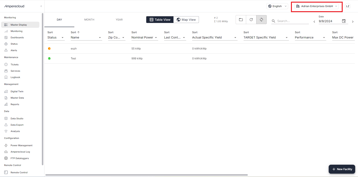
- Click on your company name in the top right-hand corner.
- Select Company admin from the drop-down menu.

-
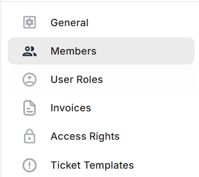
Navigate to the Members section.
-
Under actions click on the Key symbol to reset OTP.

Option 2 – Support Assistance
If your organization has no Company Admin, Amperecloud Support can assist with recovery: Online support form.
Password Reset
If you have forgotten your password, follow the steps in the article Reset password.
Need More Help?
If you encountered any difficulties or need further assistance, here are some steps you can take:
Contact Support:
- Email: Reach out to our support team by emailing us at support@amperecloud.com. Provide as much detail as possible about the issue you're facing.
- Fill out a form: Complete our online support form. Please include all relevant information about your request, and our team will get back to you as soon as possible.
Share Your Feedback
If this article didn’t meet your needs or if you have suggestions on how we can improve, please let us know by submitting feedback. Your input helps us enhance our resources and support.