![amperecloud_logo_bgwhite-1.png]](https://knowledge.ampere.cloud/hs-fs/hubfs/amperecloud_logo_bgwhite-1.png?height=40&name=amperecloud_logo_bgwhite-1.png)
Step-by-step instructions
1. Open the login page
- Open the Amperecloud Platform login page.
- Go to Amperecloud login page.
- Select your preferred language. Subsequent emails will be sent in the chosen language.
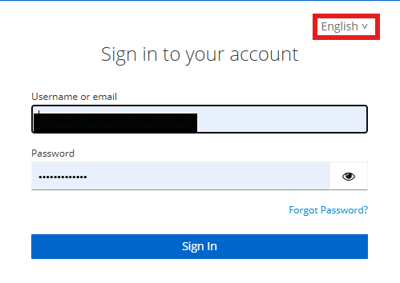
Save the link to the login page in your bookmarks for quick access.
2. Request a password reset
- Click on "Forgot password":
- You will find this option below the login fields.
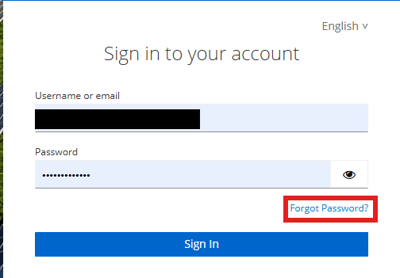
- You will find this option below the login fields.
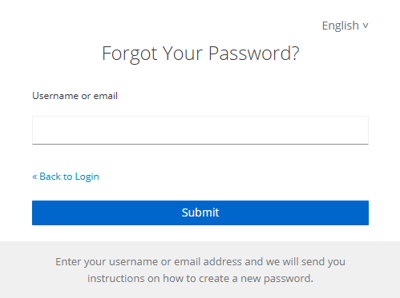
- Enter your e-mail address:
- Enter the email address associated with your Amperecloud account.
- Click on "Submit".
3. Open the password reset e-mail
- Check your e-mail inbox:
- You will receive an email with the subject "Reset password for Platform".
- Also check your spam folder if the email is not in your inbox.
If you cannot find the email, check that you have entered your email address correctly or request the reset again.
4. Reset password
- Open the email and click on the password reset link.
- The link will redirect you to the password reset page.
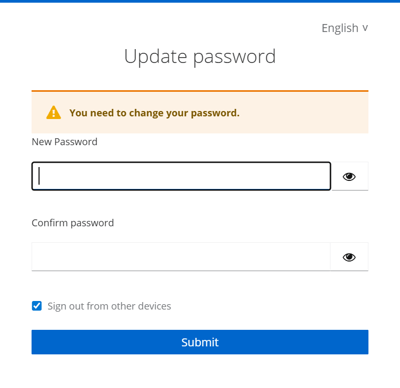
- The link will redirect you to the password reset page.
- Enter your new password:
-
To ensure secure access, passwords must include:
-
Minimum 1 uppercase letter
-
Minimum 1 lowercase letter
-
Minimum 1 digit
-
Minimum 1 special character
- At least 8 characters long
-
-
-
- Confirm the password by entering it again and click on "Reset password".
A weak password increases the risk of security incidents. Always use a strong and secure password.
5. Complete registration
- Go back to the login page.
- Log in with your e-mail address and your new password.
Need More Help?
If you encountered any difficulties or need further assistance, here are some steps you can take:
Contact Support:
- Email: Reach out to our support team by emailing us at support@amperecloud.com. Provide as much detail as possible about the issue you're facing.
- Fill out a form: Complete our online support form. Please include all relevant information about your request, and our team will get back to you as soon as possible.
Share Your Feedback
If this article didn’t meet your needs or if you have suggestions on how we can improve, please let us know by submitting feedback. Your input helps us enhance our resources and support.