![amperecloud_logo_bgwhite-1.png]](https://knowledge.ampere.cloud/hs-fs/hubfs/amperecloud_logo_bgwhite-1.png?height=40&name=amperecloud_logo_bgwhite-1.png)
Service Level Agreements (SLAs) allow companies to define response and resolution deadlines for alarm events based on business hours, alarm severity, and facilities. This feature helps ensure contractual obligations are met and provides visibility into SLA compliance.
SLAs are an enterprise feature and are only available to companies with the Service Level Agreements feature enabled. Please contact your customersuccess manager
Call up company Admin
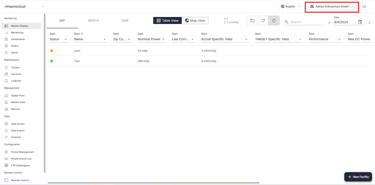
Click on your company name in the top right-hand corner.Select Company admin from the drop-down menu.
Click on Service level Agreement in the sidebar.
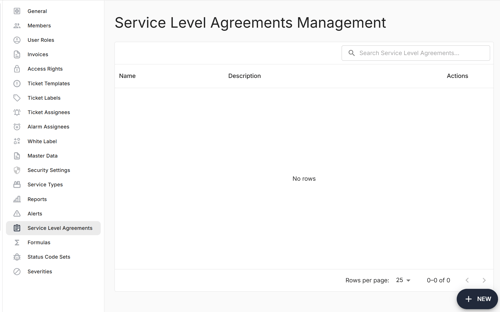
SLA Overview
The SLA overview displays a table of all existing SLA configurations for the company. From here, you can:
- View existing SLAs
- Create a new SLA
- Edit existing configurations
Creating or Editing an SLA
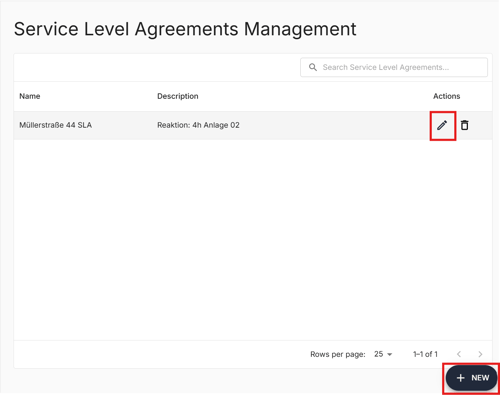
Click on + New to create a new SLA or on the Pen Icon to edit an already existing one.
Step 1: Setup

Define:
- Name
- Description
Click on Next once completed.
Step 2: Applies
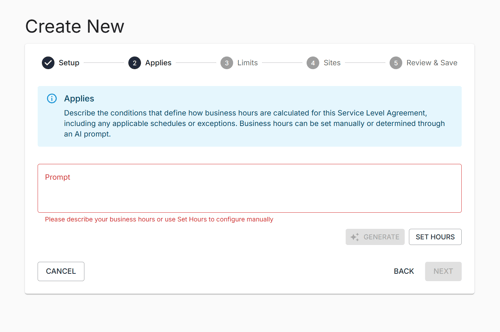
SLAs use business hours to calculate response and resolution deadlines.
AI Integration
You can define business hours using natural language, for example:
“From Monday to Friday, 5:30 AM to 4:30 PM, Berlin time zone, exclude German public holidays.”
Important requirements:
Always explicitly specify the time zone
-
If not provided, UTC is used by default.
When excluding public holidays, specify the country.
-
Example: German vs. Czech public holidays can result in different excluded days.
Click Generate to create business hours.
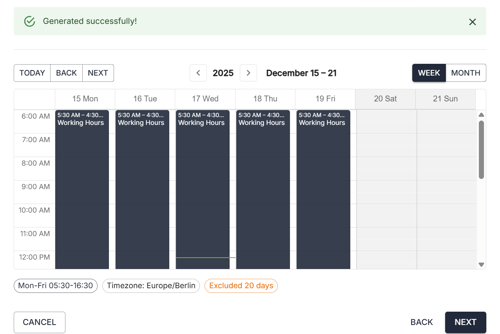
Visual Review
Generated hours are displayed as tags.
A calendar-style view allows you to review included and excluded dates (e.g. public holidays).
Set Hours Manually
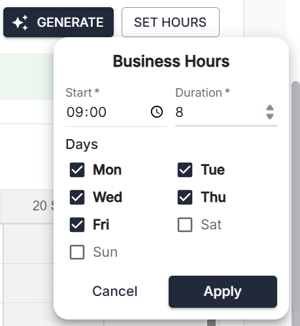
The Set Hours option allows basic manual configuration, but No exclusions (e.g. holidays).
Click on Next once completed.
Step 3: Limits
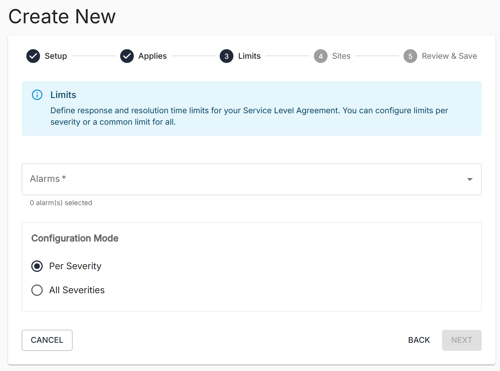
SLAs are applied to alarm events.
Select one or more alarms.
Choose how response and resolution times are configured:
-
Per severity (e.g. Critical, Warning)
-
Same time for all severities
Response vs. Resolution
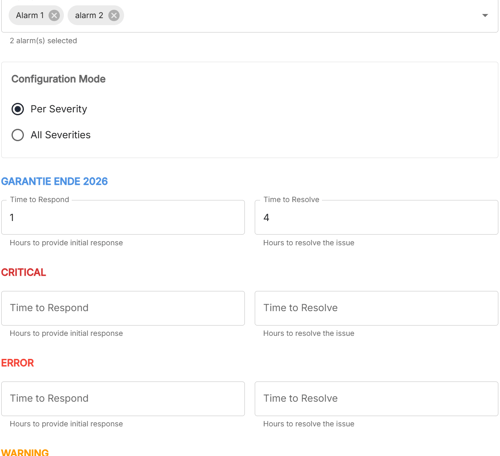
Response time
Countdown starts when the alarm firesConsidered responded when:
- The alarm is acknowledged, or
- A ticket is created from the alarm
Resolution time
Considered resolved when the ticket status is changed to Resolved or Closed.
If deadlines are exceeded, the SLA is marked as breached.
Click on Next once completed.
Step 4: Sites
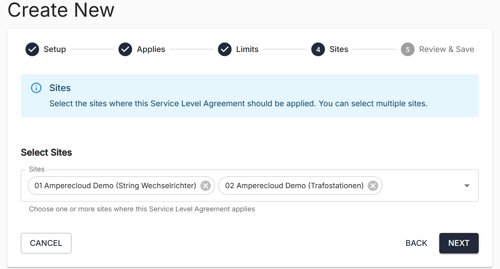
Select the facilities where the SLA applies.
You can:
-
Select individual facilities.
-
Use text search to filter facilities (e.g. by country code or naming pattern).
Click on Next once completed.
Step 5: Review & Save
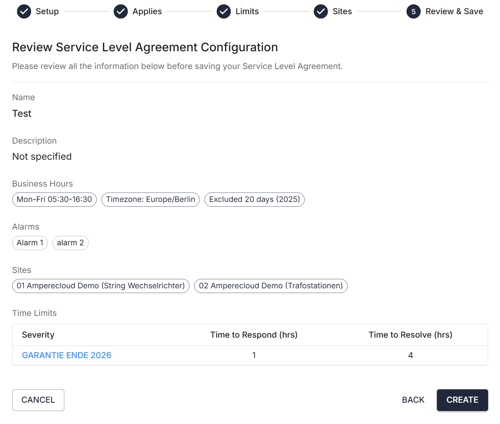
Review the full configuration before creating.
Updating an Existing SLA
When editing an existing SLA, you will be asked:
-
Re-evaluate existing alarms with the new SLA settings, or
-
Apply changes only to new alarm events.
Click on Create once completed.
SLAs in the Digital Twin
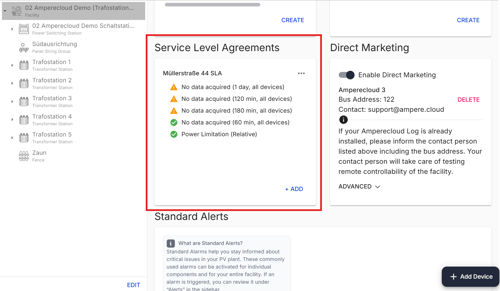
For companies with SLAs enabled, a new SLA section appears in the Digital Twin view of a facility.
-
All SLA configurations attached to the facility are listed.
-
Status indicators show:
-
Correct configuration.
-
Missing alarm configuration for that facility.
-
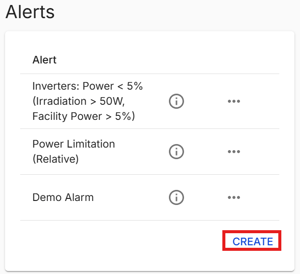
If an alarm is missing, create it to fully activate the SLA.
SLA Behavior on Alert Events
When an alert is triggered:
-
The system checks for an applicable SLA (by facility and alert).
-
Response and resolution deadlines are automatically calculated.
-
Deadlines are attached to the aertevent.
Viewing SLA Deadlines
You can find more Information about the Alert Overview here.
here.
-
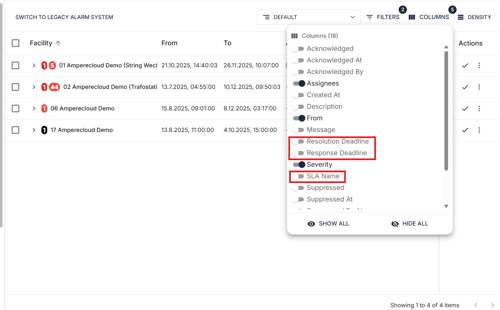
Available in the new alert view (not legacy version).
-
Users can enable columns such as:
-
SLA name
-
Response deadline
-
Resolution deadline
-
-
Column selections can be saved per user.
Tickets and SLA Status
Creating a Ticket
-
Creating a ticket from an alert automatically marks the SLA as responded.
-
Response deadlines are shown at the ticket level.

Resolving an SLA
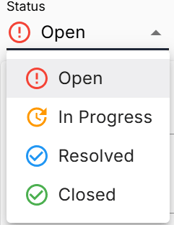
An SLA is considered resolved when the ticket status is changed to:
-
Resolved, or
-
Closed
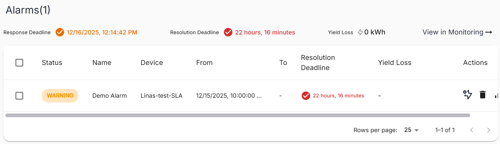
If the resolution exceeded the deadline:
-
The SLA is marked as breached
-
Visual indicators (red icons) remain visible
Applying Existing SLAs to Facilities
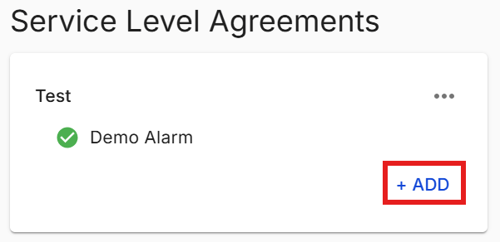
Company admins can:
-
Create SLA configurations without assigning them immediately.
Operators can later:
-
Select and apply an existing SLA to a facility as needed.
Visual Indicators & Status Icons
-
Green icons indicate SLA compliance
-
Warning or red icons indicate breached response or resolution times
-
Icons appear once alarms are acknowledged or resolved
Need More Help?
If you encountered any difficulties or need further assistance, here are some steps you can take:
Contact Support:
- Email: Reach out to our support team by emailing us at support@amperecloud.com. Provide as much detail as possible about the issue you're facing.
- Fill out a form: Complete our online support form. Please include all relevant information about your request, and our team will get back to you as soon as possible.
Share Your Feedback
If this article didn’t meet your needs or if you have suggestions on how we can improve, please let us know by submitting feedback. Your input helps us enhance our resources and support.