![amperecloud_logo_bgwhite-1.png]](https://knowledge.ampere.cloud/hs-fs/hubfs/amperecloud_logo_bgwhite-1.png?height=40&name=amperecloud_logo_bgwhite-1.png)
Device Replacement in the Digital Twin
If a component is defective and cannot be repaired, the Platform makes it easy to replace the device in the digital twin without losing important historical data. The Device Replacement feature transfers all historical data, mappings, alarms, and operational context from the old device to the new one—preserving dashboards, calculations, and continuity.
Replacing a device in the digital twin
Go to the Digital Twin of your facility. 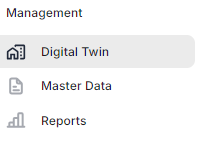
Right-click on the affected device and select the “Replace” option.
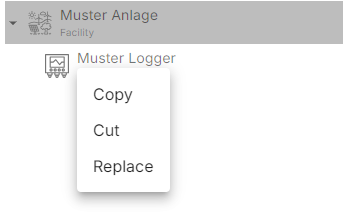
Before proceeding, ensure that the replacement device already exists in the digital twin.
Replacement Overview
The replacement window displays key information:
-
Type of device being replaced (e.g., Inverter)
-
Name of the selected device (e.g., WR 4)
-
All actions that will be carried out during the replacement
-
Confirmation that all data from the old device and its children will be transferred to the new device
-2.png?width=308&height=473&name=image%20(4)-2.png)
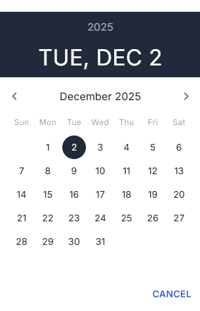
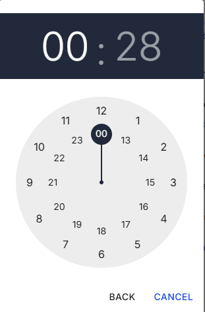
You can then select the date and time when the replacement should occur. These values can be adjusted manually.
Selecting a Compatible Device
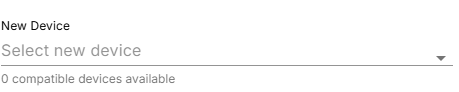
Under “New Devices,” a dropdown lists all compatible replacement options.The number of available compatible devices is shown below the menu.
A device is considered compatible only if:
-
It is the same device type
-
It has an identical child structure (including nested levels)
Example: An inverter with two MPP trackers requires another inverter with exactly two MPP trackers.
After selecting the new device:
-
A Device Replacement Mapping appears, listing all detected mismatches (e.g., naming differences).
-
If issues exist, you must type “CONFIRM” to proceed. If no issues are found, this step is skipped.
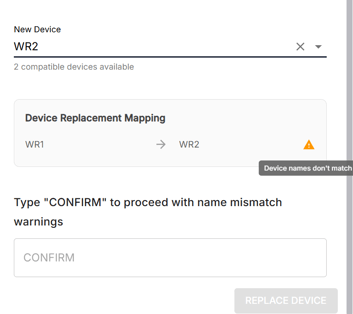
Click “Replace Device” to finalize the operation.
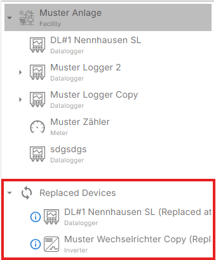
Once completed, the old device moves to the Replaced Devices section, and the new device is placed in the original device’s location.
Replacement Status
Under Replaced Devices, you will find a list of all replaced devices.
-
Right-click a device and select “Replacement Status.”
-
Here you can track whether the replacement is still in progress and which steps are pending.
If any critical step fails, the replacement will be marked as Failed.
Use the refresh icon in the top-right corner to update the status.
-3.png?width=220&height=266&name=image%20(6)-3.png)
.png?width=220&height=269&name=image%20(8).png)
-2.png?width=220&height=267&name=image%20(7)-2.png)
Undoing a Replacement
You can undo a replacement only after it has fully completed.
Replacements that are failed or still in progress cannot be undone.
What Undo Restores
Device Tree Positions
-
The old device and its children return to their original location
-
The new device returns to its original location
Readings
-
All readings for both device trees revert to their pre-replacement state
What Undo Does NOT Restore
These must be recreated or corrected manually:
-
Reading mappings (must be recreated in Data Studio)
-
Dashboards
-
Formulas
-
Aggregations
-
Alarm updates
-
Any configuration referencing the replaced device’s path
Undo Replacement
Under Replaced Devices:
-
Right-click the replaced device and select “Undo Replacement.”
-
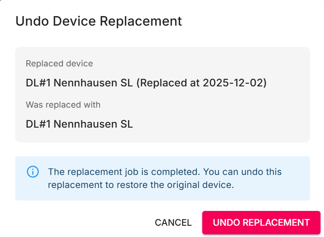
A summary will show the old device and the new device it replaced.
- Click “Undo Replacement” to finalize the operation.
Best Practices
-
Always review name mappings before confirming a replacement
-
Only use Undo Replacement when absolutely necessary
-
Verify dashboards, formulas, and aggregations after undoing
-
Ensure the replacement timestamp is accurate
Need More Help?
If you encountered any difficulties or need further assistance, here are some steps you can take:
Contact Support:
- Email: Reach out to our support team by emailing us at support@amperecloud.com. Provide as much detail as possible about the issue you're facing.
- Fill out a form: Complete our online support form. Please include all relevant information about your request, and our team will get back to you as soon as possible.
Share Your Feedback
If this article didn’t meet your needs or if you have suggestions on how we can improve, please let us know by submitting feedback. Your input helps us enhance our resources and support.