![amperecloud_logo_bgwhite-1.png]](https://knowledge.ampere.cloud/hs-fs/hubfs/amperecloud_logo_bgwhite-1.png?height=40&name=amperecloud_logo_bgwhite-1.png)
Dynamic dashboards allow you to use a single dashboard for multiple facilities – without having to create a separate version for each facility.
The key to this is the facility selection, a widget that allows all linked widgets to automatically display data for the currently selected facility.
This article explains how the Facility Selector works, how widgets become dynamic, and how to create a fully dynamic dashboard.
Facility Selector
The Facility Selector is a special widget that allows users to switch between different facilities within the dashboard.
All widgets that are configured as dynamic and linked to this selector automatically update their data for the selected facility.
Static vs. Dynamic Device Selection
Widgets with “Manage Devices” have a toggle:
Static → The widget always shows the devices that were selected manually
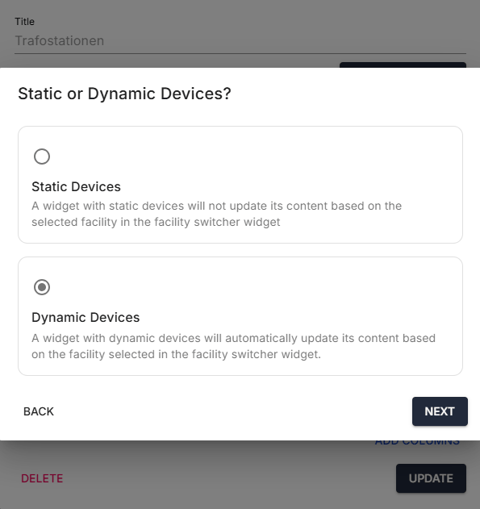
Dynamic → The widget uses the Facility Selector and shows devices of the currently selected facility
Creating a Dynamic Dashboard
To make a dashboard fully dynamic, proceed as follows:
Step 1: Add the Facility Selector Widget
-
Add the “Facility Selector” widget to the dashboard.
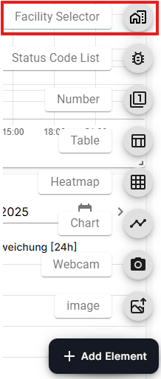
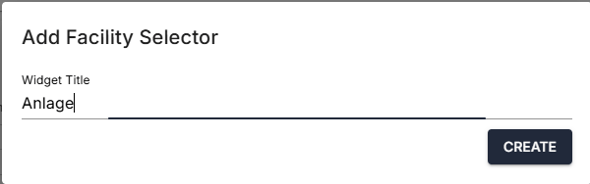
- Give the widget a name and click on create.
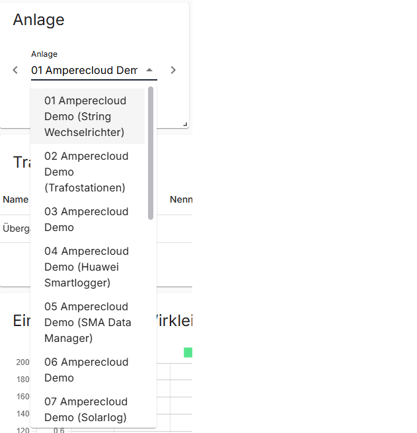
- Click through the available facilities or select a facility from a dropdown menu.
Step 2: Switch Widgets to “Dynamic Devices”
For every widget in the dashboard:
-
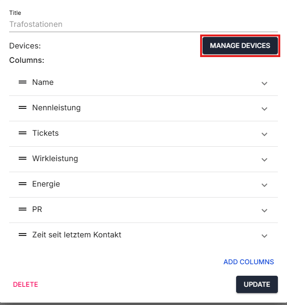
Open device management by clicking the pencil icon in the bottom-right corner of the widget and then selecting “Manage Devices”.
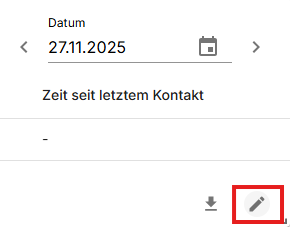
-
Select Dynamic Devices and click Next.
-
Select the previously created Facility Selector.
-
If a widget requires multiple devices, also select the device type, e.g.:
-
Inverter
-
Data Logger
-
Facility (if the widget should display the facility itself)
-
Meaning:
→ The widget displays all devices of this type from the selected facility.
Example:
A table that is set to “Inverter” displays all inverters of the selected facility.
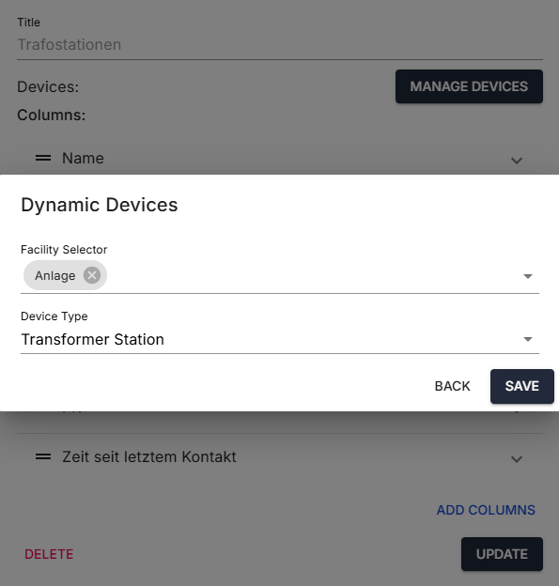
- Click Save and Update.
Need More Help?
If you encountered any difficulties or need further assistance, here are some steps you can take:
Contact Support:
- Email: Reach out to our support team by emailing us at support@amperecloud.com. Provide as much detail as possible about the issue you're facing.
- Fill out a form: Complete our online support form. Please include all relevant information about your request, and our team will get back to you as soon as possible.
Share Your Feedback
If this article didn’t meet your needs or if you have suggestions on how we can improve, please let us know by submitting feedback. Your input helps us enhance our resources and support.